

How to Integrate Google SSO with DOTS
This manual provides detailed instructions for Dots clients on configuring Google Single Sign-On (SSO) as their primary Identity Provider.
As part of the setup, you will create a Dots application, which will allow you to access Dots through your Google App portal.
Identity provider-initiated flow: This authentication flow occurs when the user initiates a login to Dots from the Google App portal.
In order to proceed with configuring login with SSO through Google SSO, you must:
1. Be a Google Workspace Administrator.
2. Be an existing Dots enterprise plan client.
Follow these steps to set up Google SSO for your organization:
1. Log in to Google Admin Console.
2. Navigate to Apps. On the left-hand menu, click “Apps”.
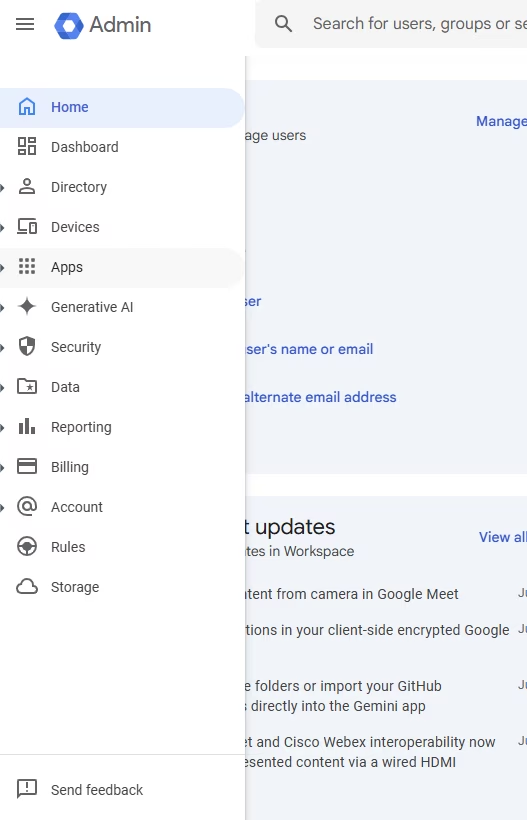
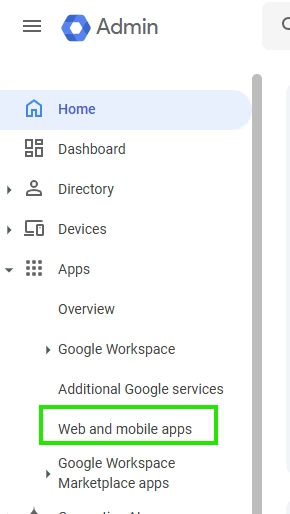
3. Open Web and Mobile Apps. Click “Web and mobile apps”.
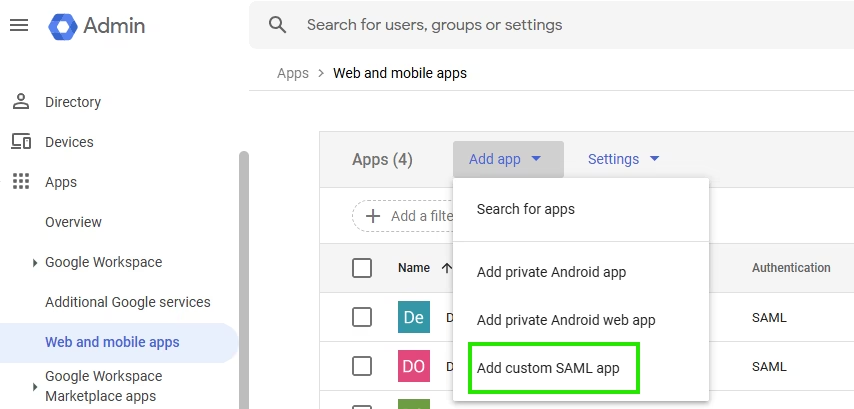
4. Add a Custom SAML App. Click the “Add App” dropdown and choose “Add custom SAML app”.
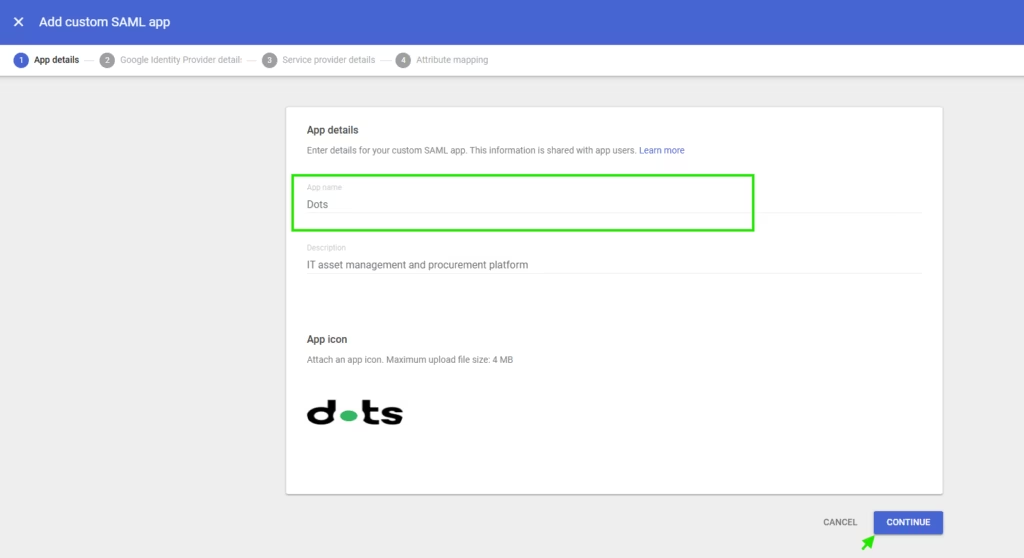
5. A 4-step process will start.
Step 1: App Details
- Enter “DOTS” as the app name.
- (Optional) Add a description and upload an icon.
- Click Continue.
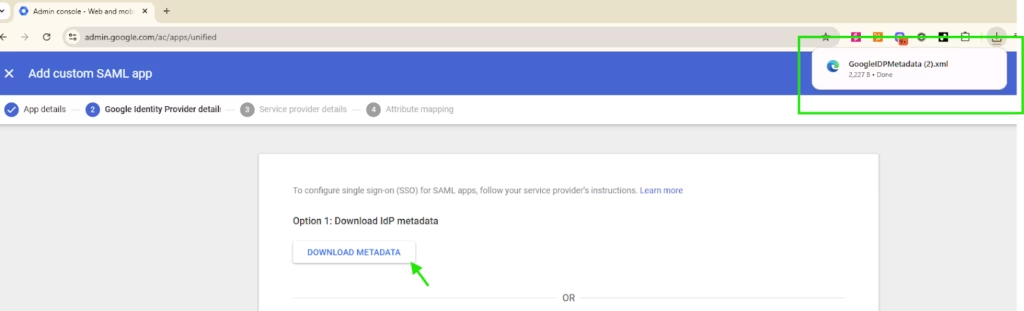
Step 2: Google Identity Provider Details
- Click “DOWNLOAD METADATA”.
- Save the file as GoogleIDPMetadata.xml — you’ll need it later.
- Click Continue.
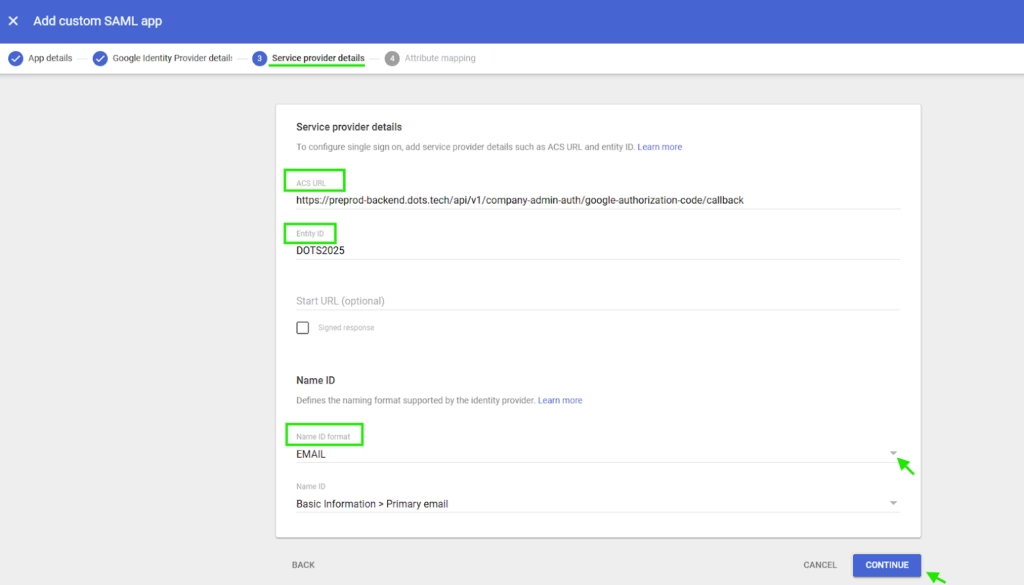
Step 3: Service Provider Details
- In ACS URL, insert:
https://backend.dotstech.com/api/v1/company-admin-auth/google-authorization-code/callback - In Entity ID, insert: DOTS2025
- For Name ID Format, choose EMAIL from the dropdown.
- Click Continue.
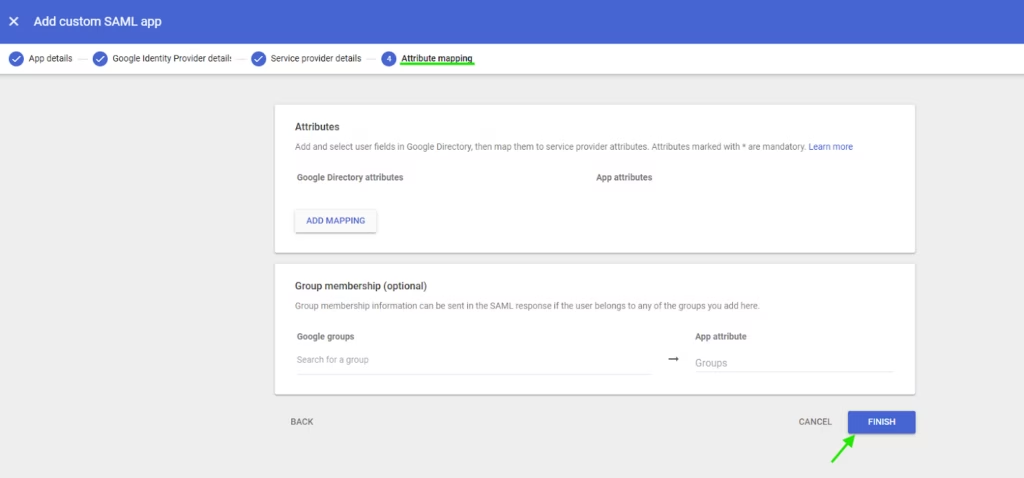
Step 4: Attribute Mapping. You can leave the default values as-is. Just click Finish.
6. Manage User Access. After finishing, you’ll be taken to the app’s page. Click “User access”.
7. Enable the App for Users. Under User access you can configure access by group, or simply choose “ON for everyone”. When you choose “On for everyone”, only users who are part of your organization and have a user in Dots will be able to log in to your Dots dashboard.
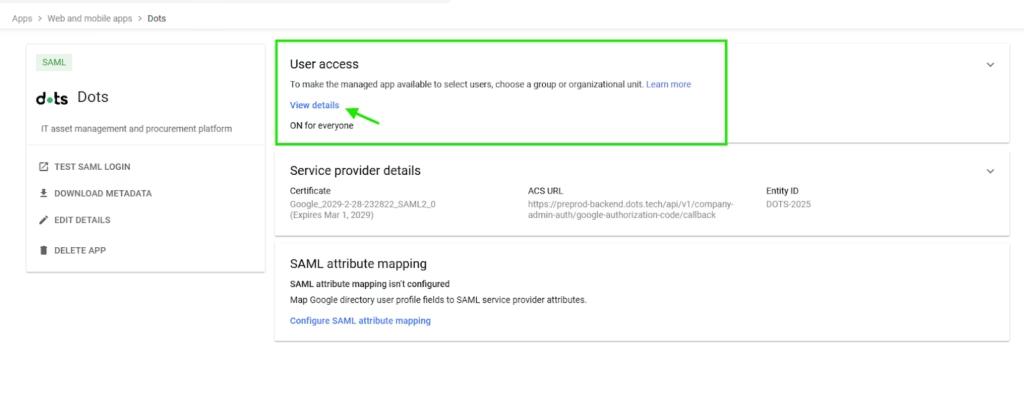
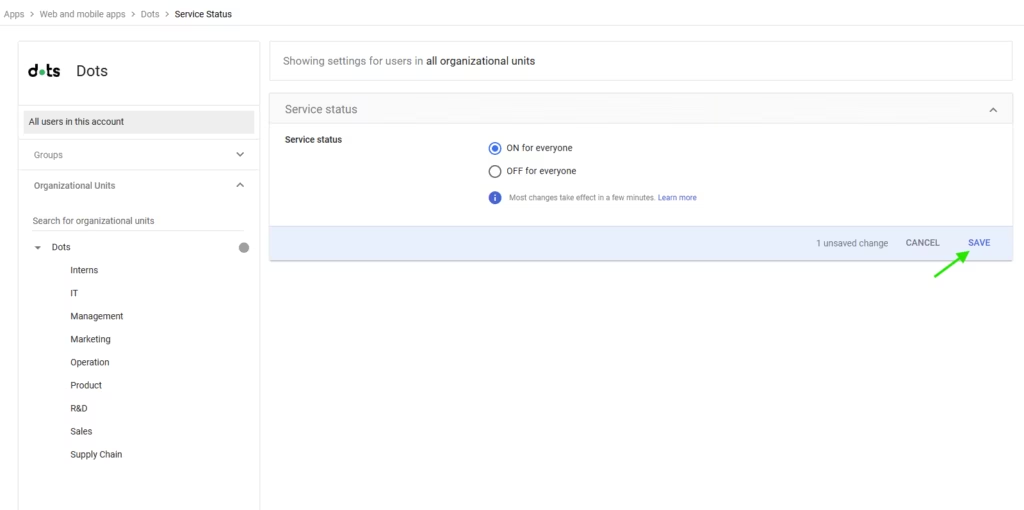
Click Save.
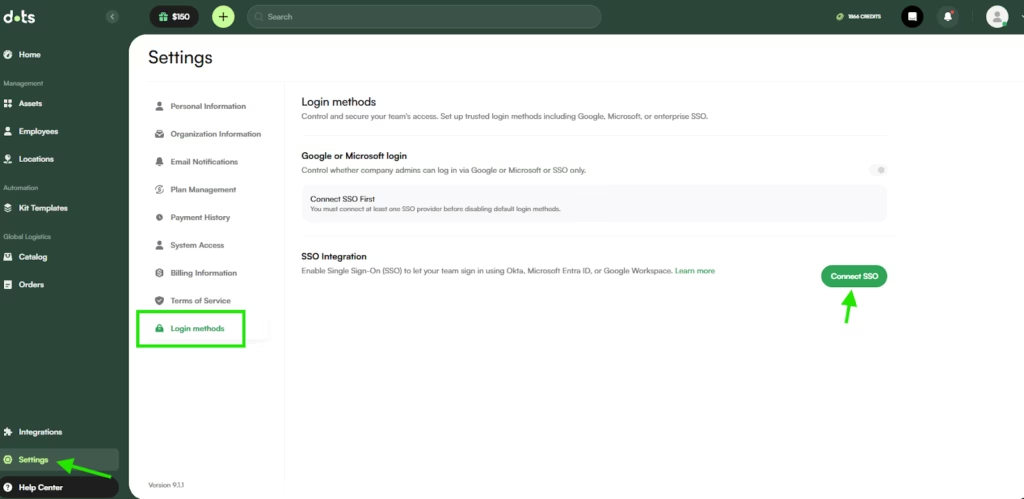
8. Go to your Dots dashboard Settings Tab and choose Login Methods from the index. Click on Connect SSO.
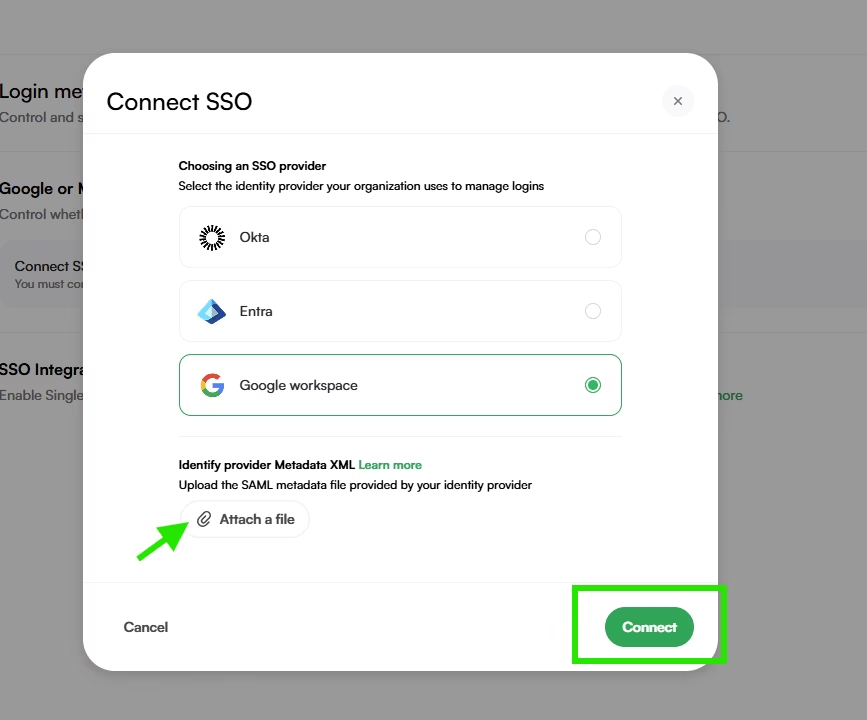
9. Choose Google Workspace and attach your App Metadata file (GoogleIDPMetadata.xml) that you downloaded previously, then click Connect.
You are now able to log in to Dots from Google’s Workspace app catalog by clicking the Dots app you have created.
If you encounter any issues, please contact our support at [email protected].

