

How to integrate Dots with ManageEngine Endpoint Central (MDM)
This guide explains how to connect Dots with ManageEngine Endpoint Central to sync and download device assets.
Note:
- This integration currently supports asset sync and download only.
- Asset assignment is not supported yet and is planned for Phase 1, 2026.
What You’ll Need
Before starting, make sure you have:
- Access to ManageEngine Endpoint Central
- Access to the Dots platform
Step 1: Create API Credentials in ManageEngine
1. Open the Zoho API Console.
2. Click Add Client (top-right corner).
3. Select Self Client.
4. Click Create.
5. When the pop-up appears, click OK.
6. Copy and save:
- Client ID
- Client Secret — you will need these later.
Step 2: Generate an Authorization Code
1. In the Zoho API Console, open the Generate Code tab.
2. In Scope and Scope Description, enter:
DesktopCentralCloud.Inventory.READ3. Set Time Duration to 10 minutes.
4. Click Create.
5. Copy the Authorization Code shown in the pop-up.
Step 3: Connect Endpoint Central to Dots
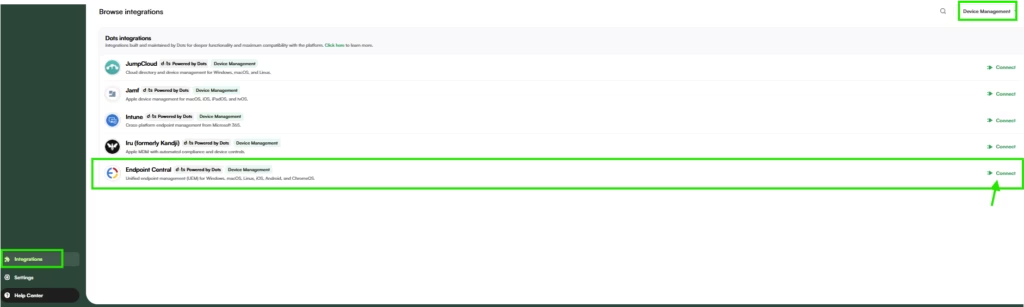
1. Open the Integrations page in the Dots platform.
2. Click on connect to Endpoint Central integration.
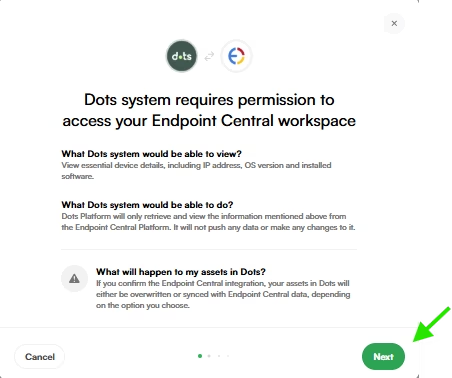
3. A pop-up window with an explanation about Dots accessing Endpoint Central will appear. Review it and click “NEXT”.
4. Paste the following details:
- Choose Domain from the dropdown.
- Client ID
- Client Secret
- Authorization Code
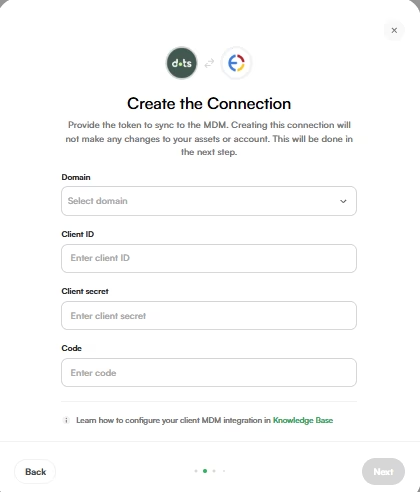
5. Click Save.
6. Now that the technical connection is done, choose the integration connection mode you would like to activate. This is important — select how you would like to sync your asset data from Endpoint Central:
Sync
Connect existing Dots assets with your MDM.
What It Does:
- Matches existing assets in Dots to assets in your MDM by serial number.
- Establishes a connection to view MDM data.
- No changes are made to your assets.
What It Means for You:
- No new assets are created.
- No updates are made to your existing assets.
Download Only
Import new assets from your MDM into Dots. “New assets” refers to any asset found in the MDM whose serial number does not already exist in Dots. To prevent duplicates, we recommend that all previously uploaded assets in Dots include serial numbers.
What It Does:
- Pulls any new assets from your MDM that aren’t already in Dots.
- Creates new asset records in Dots.
What It Means for You:
- Your existing assets remain unchanged.
- Any asset found in your MDM but missing in Dots will be added.
- Use this to ensure all your MDM-managed devices appear in Dots.
Download and Sync
Import new and connect existing assets from your MDM with Dots. “New assets” refers to any asset found in the MDM whose serial number does not already exist in Dots. To prevent duplicates, we recommend that all previously uploaded assets in Dots include serial numbers.
What It Does:
- Pulls any new assets from your MDM that aren’t already in Dots.
- Creates new asset records in Dots.
What It Means for You:
- Your existing assets remain unchanged.
- Any asset found in your MDM but missing in Dots will be added.
- Use this to ensure all your MDM-managed devices appear in Dots.
Please review all options to make sure you choose the best connection for your needs, and click “NEXT” when you are done. Don’t worry — you can always edit later.
After clicking “Next” you’ll be presented with a report showing how many assets were downloaded to Dots and how many were synced. Please take a moment to review it and click “NEXT”.
✅ The integration is now complete and your laptops and devices should sync.
If you had any issues during this integration, please contact our support from your Dots dashboard (bottom-left menu) or send us an email at [email protected].

